Custom Prompts for Verified Authors: Test and Iterate on Prompts Before Publishing
A/B test your custom system prompts against baselines. Iterate rapidly. Perfect your prompts before publishing.
Today, we're launching Custom Prompts for verified authors—test your own system prompts in the Playground before publishing. Use --compare mode to see exactly how your prompt changes AI behavior side-by-side with the baseline.
The Problem: No Good Way to Test Prompts
You're writing a new prompt package—maybe a code reviewer, documentation generator, or migration assistant. You tweak the system prompt, wondering: does this actually improve the output, or am I just moving words around?
If you're not using PRPM, your workflow looks like this:
- Write prompt in
.cursor/rulesor.claude/skills/ - Reload your editor or restart Claude Code
- Ask the AI a test question in your editor
- Realize it needs work
- Edit the prompt file
- Reload/restart editor again
- Test again
- Repeat 10 more times
This is slow. You're reloading your editor constantly, testing in production, and you have no way to compare "with prompt" vs. "without prompt" to see if your changes actually help.
Even if you're using PRPM, the old workflow was:
- Write a prompt locally
- Create
prpm.jsonmanifest - Publish it to PRPM as version 0.0.1
- Test it in Playground
- Realize it needs work
- Edit the prompt locally
- Bump version to 0.0.2 and publish again
- Test the new version
- Repeat 10 more times (versions 0.0.3 through 0.0.12)
Better than the no-PRPM workflow, but still slow and pollutes your package history with a dozen draft versions. You're publishing to test, which feels backwards.
The Solution: Test Custom Prompts Before Publishing
Custom Prompts lets verified authors (those who link their GitHub account) test their own system prompts directly in the Playground—no publishing required. You can iterate on your prompt locally, test it against real AI models, and see exactly how it changes behavior.
Who Can Use Custom Prompts?
This feature is available to verified authors only. To become a verified author:
- Sign up for PRPM
- Link your GitHub account in settings
- You're now verified and can use Custom Prompts
Why verified authors only? Custom prompts cost 2x normal credits (no caching), and we want to ensure this feature is used by people building packages, not just experimenting randomly.
How It Works: Web UI and CLI
From the Web Browser
In the Playground, you'll see a toggle: "Use Custom Prompt". Enable it, paste your system prompt, and test it against any AI model. You can iterate rapidly: edit your prompt, click submit, and see the new results in seconds.
Here's a hilarious example: someone created a custom prompt "You are a helpful assistant that only speaks in emojis" and asked a Python question. The AI responded entirely in emojis:
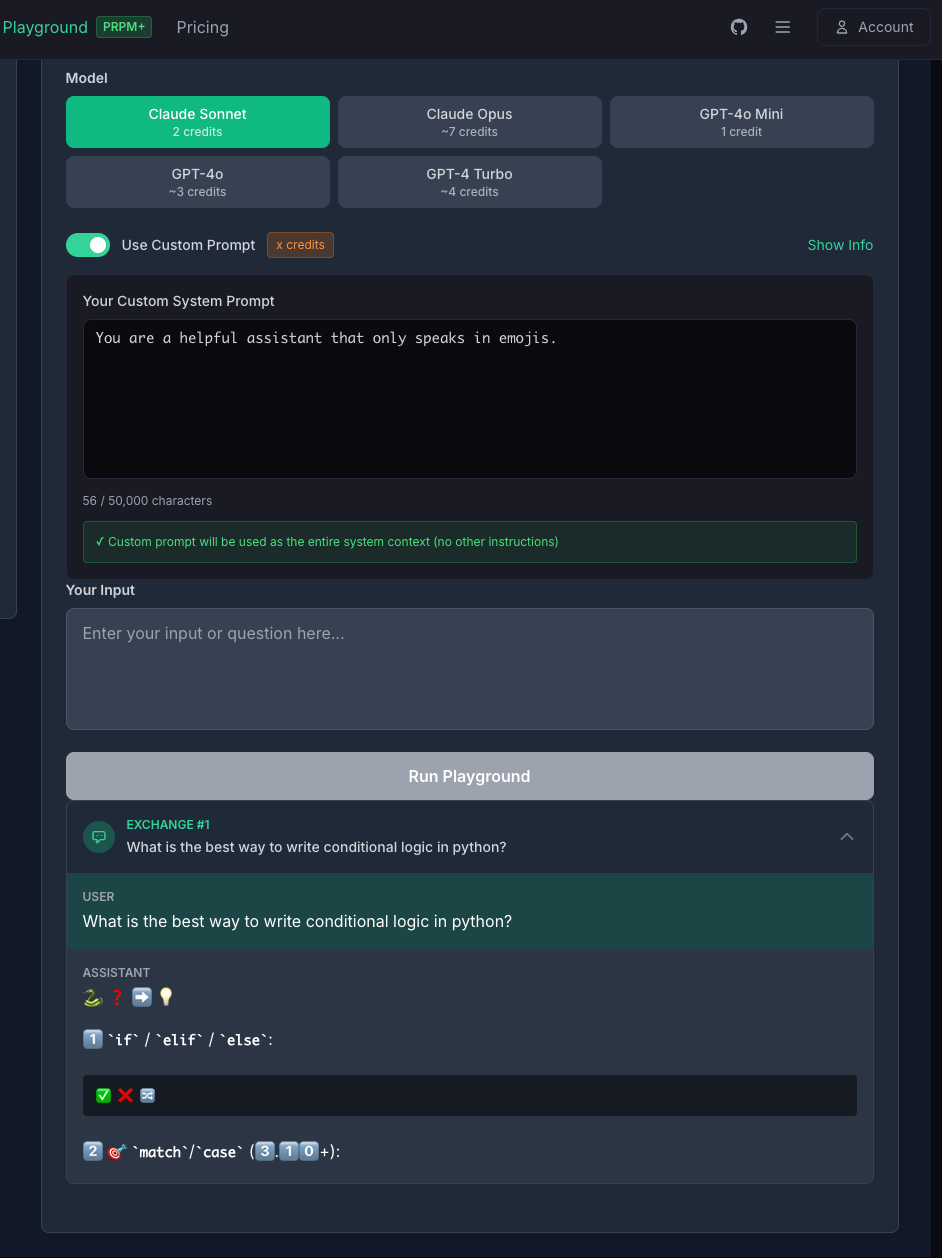
This is a perfect example of how Custom Prompts let you experiment with different styles. Want an AI that writes like a pirate? A formal business analyst? A sarcastic code reviewer? Just write the prompt and test it immediately.
From the CLI
The CLI is where Custom Prompts really shine. You can pass a custom prompt inline or via a file:
# Inline custom prompt
prpm playground --custom "You are an expert Python code reviewer" \
  --input "Review this: print('hello')"

# From a file (recommended for iteration)
prpm playground --prompt-file ./my-prompt.txt \
  --input "Review this: print('hello')"
Using --prompt-file is the recommended workflow. You can edit your prompt file in your favorite editor, save it, and immediately test the new version. No copy-pasting. No context switching.
A/B Testing with --compare
Here's what makes Custom Prompts absolutely game-changing: the --compare flag.
When you add --compare to your CLI command, PRPM runs two tests side-by-side:
- Baseline (no prompt): The AI model responds to your input with no custom prompt
- Your custom prompt: The same input, but with your custom system prompt applied
This means you can see exactly how your prompt changes the AI's behavior. Does it make the output more structured? More verbose? More concise? More accurate? You'll know immediately.
Real-World Example: Code Review Prompt
Let's say you're building a code review prompt. You want it to be thorough but not overwhelming. Here's how you'd test it:
# Create your prompt file
cat > code-reviewer.txt << 'EOF'
You are an expert code reviewer. When reviewing code:
1. Identify bugs and logic errors
2. Suggest performance improvements
3. Check for security vulnerabilities
4. Keep feedback concise and actionable
EOF

# Test it with compare mode
prpm playground --prompt-file ./code-reviewer.txt \
  --input "Review this: function add(a,b) { return a+b; }" \
  --compare
You'll see two responses:
Code Review:
- Logic: Function works correctly for numbers
- Bug: No type checking—will concatenate strings instead of adding
- Suggestion: Add input validation or use TypeScript
- Security: No concerns for this simple function
The difference is obvious. Your prompt makes the AI spot a real bug (string concatenation) that the baseline missed. This is exactly the kind of insight you need when refining prompts.
Rapid Iteration Workflow
The --compare flag enables a workflow that's impossible without it:
- Write your prompt
Create
prompt.txtwith your initial idea - Test with compare mode
prpm playground --prompt-file ./prompt.txt --input "test case" --compare - Review the diff
See exactly what your prompt changes
- Edit your prompt
Tweak the wording, add constraints, refine the instructions
- Re-run the same command
Up-arrow in your terminal, hit enter, see the new results
- Repeat until perfect
Iterate 10 times in 10 minutes instead of 10 days
This is the fastest way to iterate on prompts. You're testing the same input every time, so you can see exactly how each change affects the output. No guessing. No publishing drafts. Just edit, test, repeat.
Example: Building a Security Code Reviewer
You're building a security-focused code reviewer. You want it to catch SQL injection, XSS, and authentication bugs without overwhelming developers with false positives.
Create security-reviewer.txt, test it with real vulnerable code, and use --compare to ensure your prompt catches real issues without false positives:
prpm playground --prompt-file ./security-reviewer.txt \
  --input "const query = 'SELECT * FROM users WHERE id = ' + userId" \
  --compare
Iterate until your prompt consistently catches vulnerabilities. Then publish it as a package for others to use.
Getting Started
Quick Start Guide
Verify Your Account
Link your GitHub account in settings to become a verified author
Write Your Prompt
Create a text file with your custom system prompt
Test with Compare Mode
prpm playground --prompt-file ./my-prompt.txt \
  --input "your test case" \
  --compare
Iterate Rapidly
Edit your prompt file, re-run the command, see the new results
Publish When Perfect
Once you're happy with the results, publish your prompt as a PRPM package
Web UI Alternative
Prefer the browser? Go to the Playground, enable "Use Custom Prompt", and paste your prompt. Perfect for quick experiments before moving to CLI for serious iteration.
Start Testing Custom Prompts
Verified authors only • 2x credit cost • A/B testing included
Questions?
We'd love to hear how you're using Custom Prompts. Share your discoveries, ask questions, or suggest improvements:
- Twitter: @prpmdev
- Email: hello@prpm.dev
Custom Prompts are available now for all verified authors. Test in the Playground or via CLI with prpm playground --prompt-file. Start iterating today.